Table of Contents (11 sections)
Setting up a new smartphone can seem daunting, especially with all the features and options available nowadays. However, with the right guidance, you can set up your new smartphone efficiently and enjoy it to its fullest. In this tutorial, we will walk you through the essential steps to get your device ready for use in 2026.
Step 1: Unboxing and Initial Setup
Before you dive into the digital setup, take a moment to unbox your new smartphone carefully. Start by checking all the included accessories—charger, headphones, and manuals. After ensuring everything is there, insert your SIM card. Using a SIM eject tool, gently push into the small hole near the SIM tray until it pops out.
Once your SIM is inserted, press and hold the power button until the device vibrates or the logo appears on the screen. Depending on the manufacturer, you may see a welcome screen prompting you to select your language. This step is crucial; choose your preferred language as it will define your entire smartphone experience.
💡 Pro Tip: Make sure your device is charged—ideally, between 60% and 100%—for seamless setup without interruptions. If the battery is low, plug it in before proceeding. This step avoids those annoying “low battery” prompts mid-setup.
Step 2: Connect to Wi-Fi
After selecting your language, the next vital step is connecting your smartphone to Wi-Fi. This connection is essential for further setup, downloading apps, and ensuring your device is updated. Click on the Wi-Fi option and select your home network from the list.
Enter your Wi-Fi password carefully; a common mistake is inputting incorrect characters, leading to connection issues. A stable Wi-Fi connection not only lets you download updates but also saves your mobile data for later use. Once connected, your phone may prompt you to check for updates.
Common Pitfall: Don’t skip this step. Setting up without the latest software can expose you to security vulnerabilities. Updating often includes essential features that enhance performance and security.
Step 3: Sign in to Your Google/Apple Account
After connecting to Wi-Fi, your next task is to sign in to your Google (Android) or Apple (iOS) account. If you already have one, simply enter your credentials. If not, follow the prompts to create a new account. This step is crucial for accessing the app store, syncing data, and utilizing services like cloud storage.
If you have an existing Android device, you can opt to restore data from it during this process. This makes transferring your apps, contacts, and settings smoother. If it's your first smartphone, you’ll need to set up a few options like security, payment methods, and preferences.
Did You Know: According to recent statistics, around 80% of smartphone users often do not back up their data regularly. Having a linked account ensures that crucial data is safe and easily recoverable.
Step 4: Customize Security Settings
Once logged into your account, it’s time to customize the security settings of your new smartphone. Choose a strong password or PIN, and consider enabling biometric options like fingerprint or facial recognition if available. This extra layer of security helps protect your personal information and ensures only you can access your device.
Another good practice is to enable “Find My Device” features. This way, you can locate your smartphone if lost or stolen. Setting up two-factor authentication can further enhance your security by requiring a second form of verification when logging into your account.
Step 5: Install Essential Apps
With your smartphone now set up and secured, it’s time to personalize it further by installing essential apps. Explore the app store—Google Play or Apple’s App Store—and start downloading your favorite apps. Essential apps may include social media platforms, productivity tools, and entertainment options.
While downloading apps, pay attention to app ratings and reviews to ensure quality. Be wary of too many applications from unknown developers. This practice reduces the risk of malware and enhances your device’s efficiency. You can also check out trending apps in categories that interest you.
💡 Useful Tip: Create a folder structure for apps on your home screen. Organizing them into categories like 'Business', 'Social', or 'Entertainment' can drastically improve your user experience.
Step 6: Personalize Your Home Screen
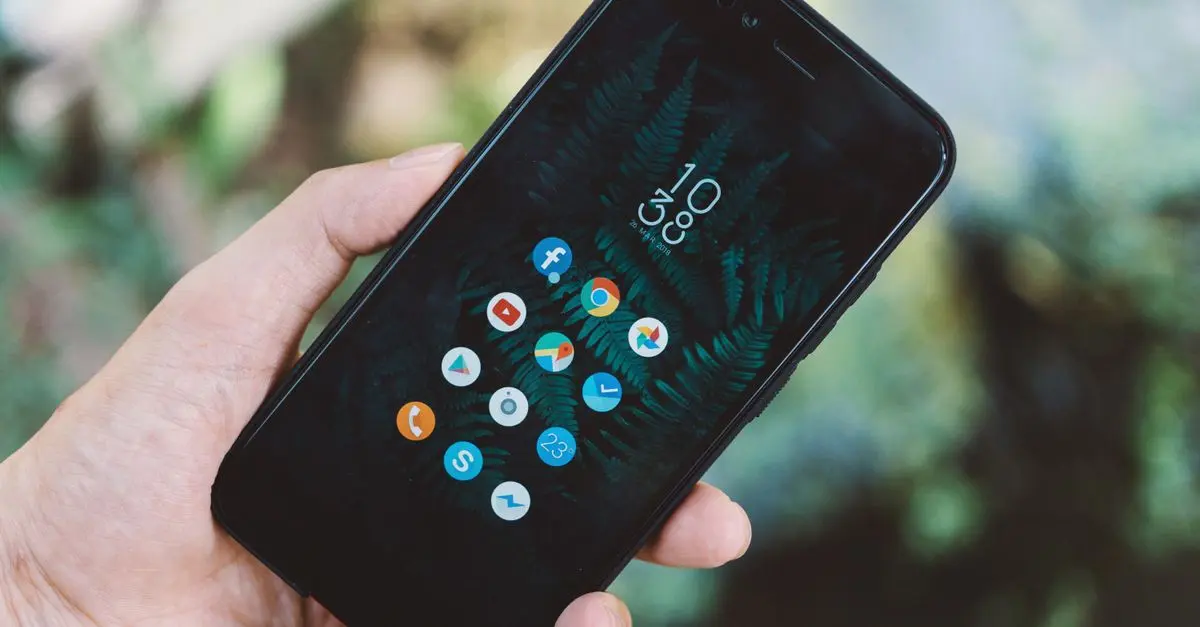
After installing the apps you need, take a moment to personalize your home screen. Most smartphones allow you to change the wallpaper, adjust widget configurations, and add shortcuts for quick access to frequently used apps. This customization not only makes your device more visually appealing but also enhances usability.
Consider choosing a wallpaper that resonates with you personally, perhaps a family picture or a scenic view. Widgets can be handy —like a weather widget that shows the forecast at a glance; they reduce the need to open separate apps frequently.
Step 7: Check Additional Settings
Before you start using your smartphone extensively, be sure to check additional settings that can improve your experience. Explore options such as notifications, battery optimization, and data usage. These settings allow you to control how your phone behaves based on your preferences—further enhancing battery life and overall experience.
Another important setting to review is privacy settings. Adjust permissions for apps, ensuring they only access what they truly need. This gives you greater control over your data and protects your privacy.
Checklist before You Start Using Your New Smartphone
- [ ] Unpack and check all accessories
- [ ] Insert the SIM card correctly
- [ ] Connect to a stable Wi-Fi network
- [ ] Sign in to your Google/Apple account
- [ ] Customize security settings
- [ ] Download essential apps
- [ ] Personalize the home screen
- [ ] Review additional settings (notifications, privacy)
📺 Resource Video
> 📺 For further guidance: [Setting Up Your New Smartphone Made Easy], a detailed walkthrough of every step you need to take. Search on YouTube: setting up new smartphone tutorial 2026.
Glossary
| Terme | Définition |
|---|---|
| SIM Card | A small card inserted into mobile devices, enabling cellular connectivity. |
| Biometric Security | A security feature that uses physical characteristics, such as fingerprints, for authentication. |
| Widget | A small application that provides information and direct access to functions on your home screen. |
> 🧠 Quick Quiz: What is the first step after unboxing your smartphone?
> - A) Insert the SIM card
> - B) Connect to Wi-Fi
> - C) Log into your account
> Answer: A — You should first set up your SIM card to start the device.